
ExifTool App Guide: Every Feature Explained, with Screenshots
ExifTool is a portable photo and video metadata editor for your phone. It reads the hidden information inside a file (camera, lens, exposure, date, GPS and hundreds of other tags) and lets you change or remove any of it without a computer.
This guide walks through every screen once, so you know where each tool lives. Each section links to a deeper how-to if you want to go further. The screenshots were taken on an Android phone using sample photos with made-up metadata, so nothing private appears.
Get it first: ExifTool is on Google Play for Android. On iPhone and iPad, join the public beta through TestFlight using the button above. The App Store listing is in review.
1. The home screen: photos, videos, files and map
When you open ExifTool, you see your photos grouped by day. Tabs across the top switch between Photos, Videos, Pick file (any file from storage or the cloud) and Map, which plots geotagged photos so you can spot which ones reveal a location.

Tip: the Map tab is the fastest privacy check you can do. If a picture of your home shows up as a pin, every copy you send carries that pin too.
2. Reading the metadata
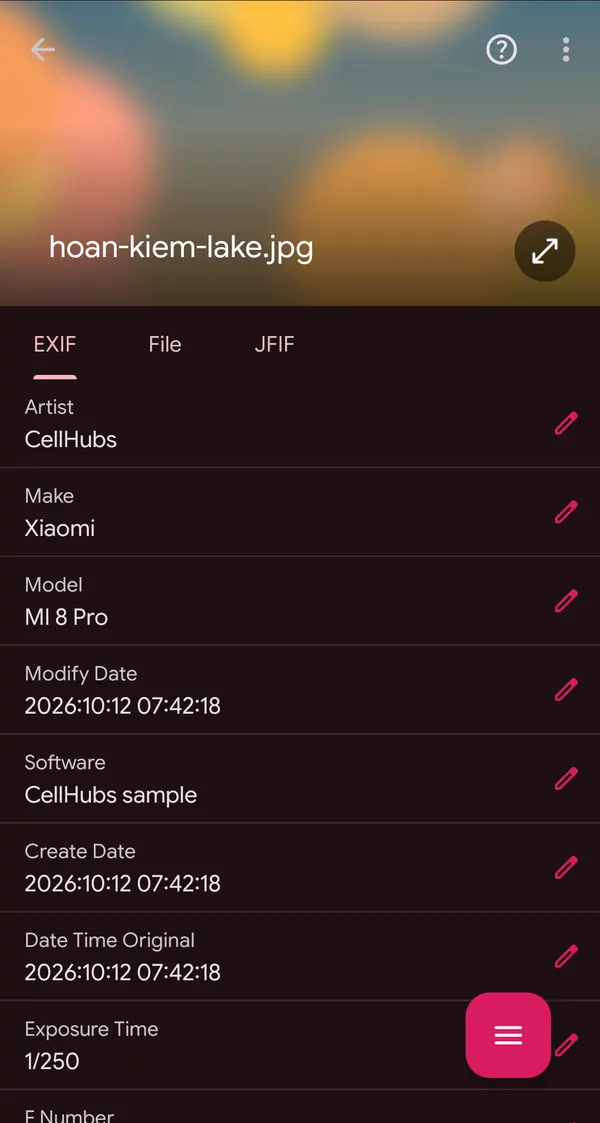
Tap any photo to open it. The top shows the picture and file name. Below it, tabs split the tags by group, for example EXIF, File and JFIF for a typical JPEG. Each row is one tag: the name on top, the value underneath and a pencil to edit it.
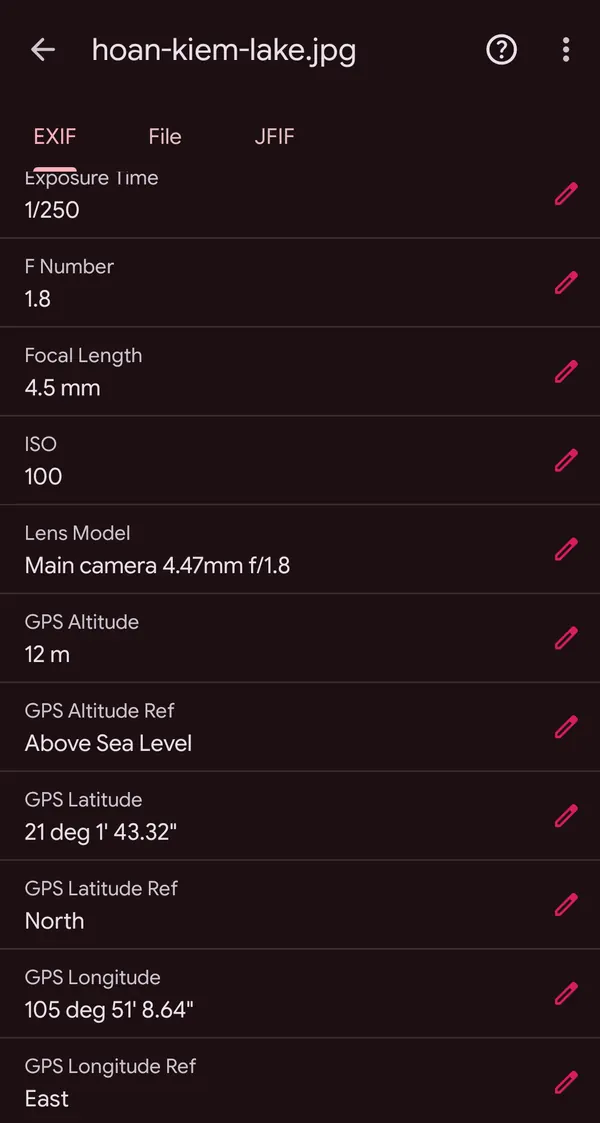
Not sure what ISO, f-number or focal length mean? Read how to read EXIF camera settings.
Choose how much you see
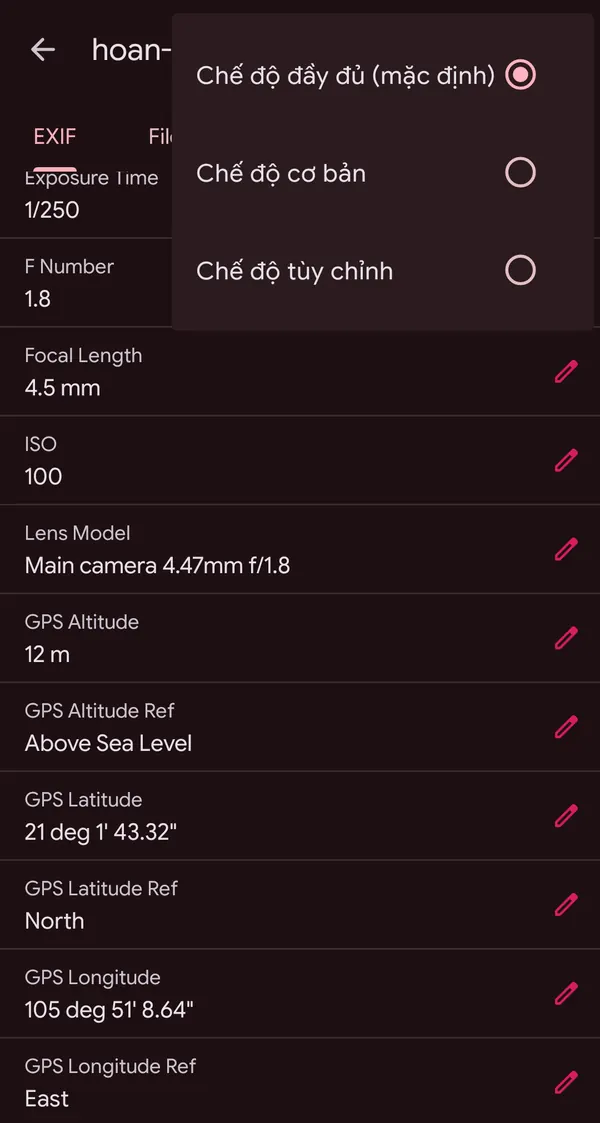
The three-dot menu switches between Full mode (every tag, the default), Basic mode (the essentials) and Custom mode (only the tags you pick). Basic mode is friendlier if you just want the date, camera and location.
3. The action menu: everything you can do to a file
The round button at the bottom right opens the action sheet. It is grouped into three parts:
- Edit: add new metadata (tags the file does not have yet), update the EXIF location, apply a saved tag template.
- Copy & export: copy metadata to other files, remove the location and share a clean copy, add a watermark frame, export all tags to CSV.
- Delete: delete the current EXIF group, delete only the tags you select, or delete every group at once.

4. Edit any single tag
Tap the pencil next to a tag, type the new value and save. This fixes the most common problems:
- a wrong date taken after a phone reset or a camera with a dead clock (full guide),
- an empty Artist or Copyright field before you publish your work,
- a camera model or software tag you would rather not reveal.
5. Change or remove the location
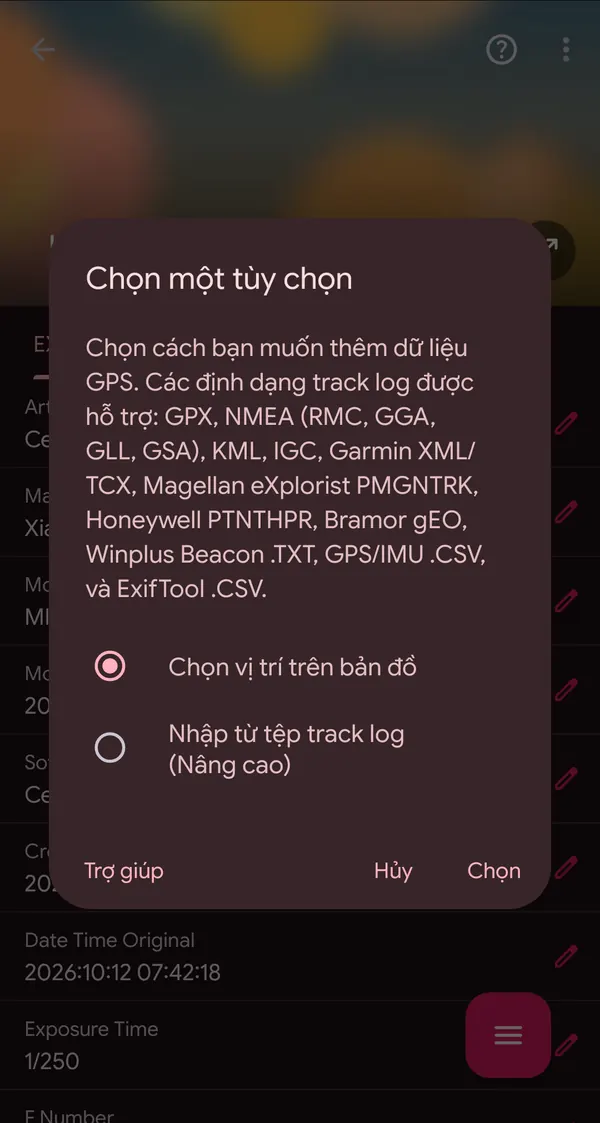
Update EXIF location offers two ways to set GPS: pick a spot on a map, or import a track log from a GPS watch, bike computer or hiking app.
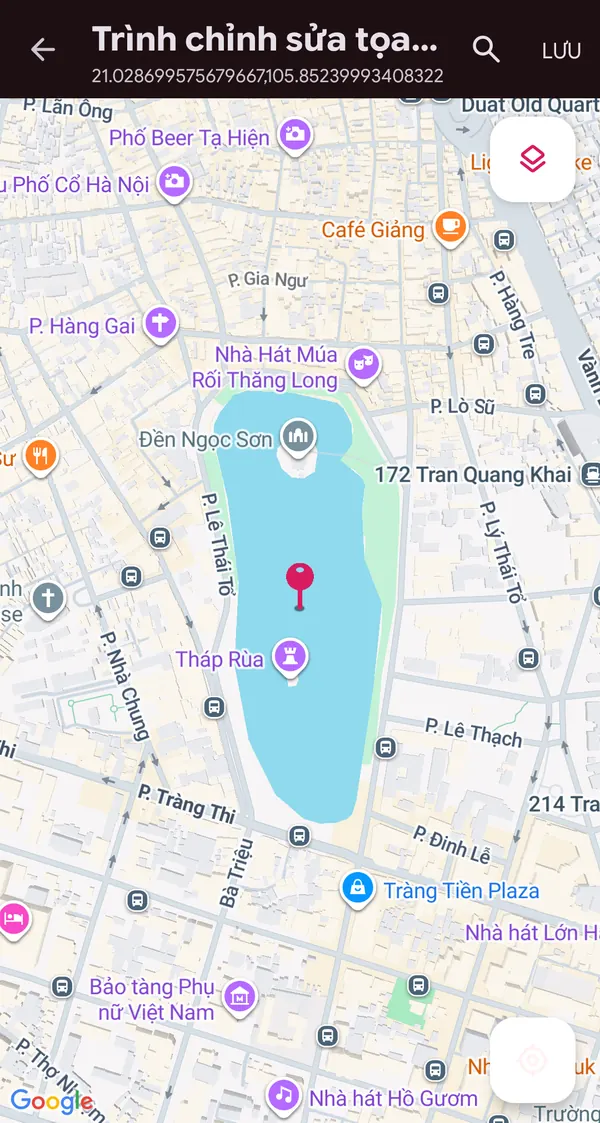
Step-by-step guides:
- Change a photo’s GPS location on a map
- Geotag photos from a GPX track log
- Find where a photo was taken, and hide it
6. Add a camera-info frame (watermark)
Add watermark draws a tasteful frame with your camera model, lens, exposure and date, like the frames you see on photography accounts. There are camera, minimal, film and technical styles, plus a custom tab.

Full tutorial: add a camera-info frame to your photos.
7. Copy, template and export
- Copy metadata to other files: pick the fields (for example date and GPS) and copy them to other photos. This is great when one shot has the right location and the rest of the burst does not.
- Apply tag template: save a set of tags once (artist, copyright, contact) and stamp it on any file.
- Export EXIF to CSV: saves every tag to a spreadsheet file for records, insurance claims or photo competitions.
8. Remove metadata safely
For privacy, you have three levels:
- Remove location & share keeps your original untouched and shares a copy without location and personal data. This is the everyday option.
- Delete selected tags removes only what you tick, such as serial numbers or GPS.
- Delete all groups wipes every removable tag from the file.

Selling something online? Read why sellers should strip photo metadata, or remove GPS from many photos at once.
Where to go next
- New to all this? Start with what EXIF data is.
- Want ideas? Try 7 creative things to do with photo metadata.
- Browse every tutorial on the ExifTool guides hub.
How to install ExifTool
- Android: Open Google Play, search for “ExifTool” or tap the Google Play badge below, then tap Install. Updates arrive automatically through Google Play.
- iPhone / iPad (beta): The iOS version is in beta on TestFlight. Install Apple’s TestFlight app from the App Store, then open the TestFlight link below on your iPhone and tap Accept → Install. If the beta is full, check back later.
Coming soon: App Store.
💡 Tip: only install ExifTool from the official stores or the links on this page, never from unknown APK/IPA mirrors. See every feature on the ExifTool page.
FAQ
Is the ExifTool app free?
ExifTool is free to download on Google Play, and the iPhone version is in public beta on TestFlight. Some advanced tools are offered as an optional in-app purchase, and the app tells you before anything is charged.
Does editing metadata reduce photo quality?
No. Tags such as date, camera model or GPS are stored next to the image data, so editing or deleting them does not re-compress the picture. Only the watermark frame creates a new image, because it draws on the photo.
Can I undo a change?
When you delete metadata, ExifTool can keep a backup copy with the suffix _original in the same folder. Leave that box ticked until you are sure, then delete the backup yourself.
Why are the screenshots in Vietnamese?
They were taken on a test phone set to Vietnamese. The app follows your phone language, and the menus are the same items in the same order in English.