
Add a Camera-Info Frame to Your Photos (Film Strip, Signature & More)
You have probably seen them on photography feeds: a clean white or black strip under the picture, with the camera name on the left and 35mm f/1.8 1/250s ISO 100 on the right. They look like they need Lightroom and a plug-in. On your phone, they take about ten seconds.
ExifTool’s Add watermark tool reads the settings already stored in the photo and lays them out in a frame. Nothing to type, and the numbers are always correct.
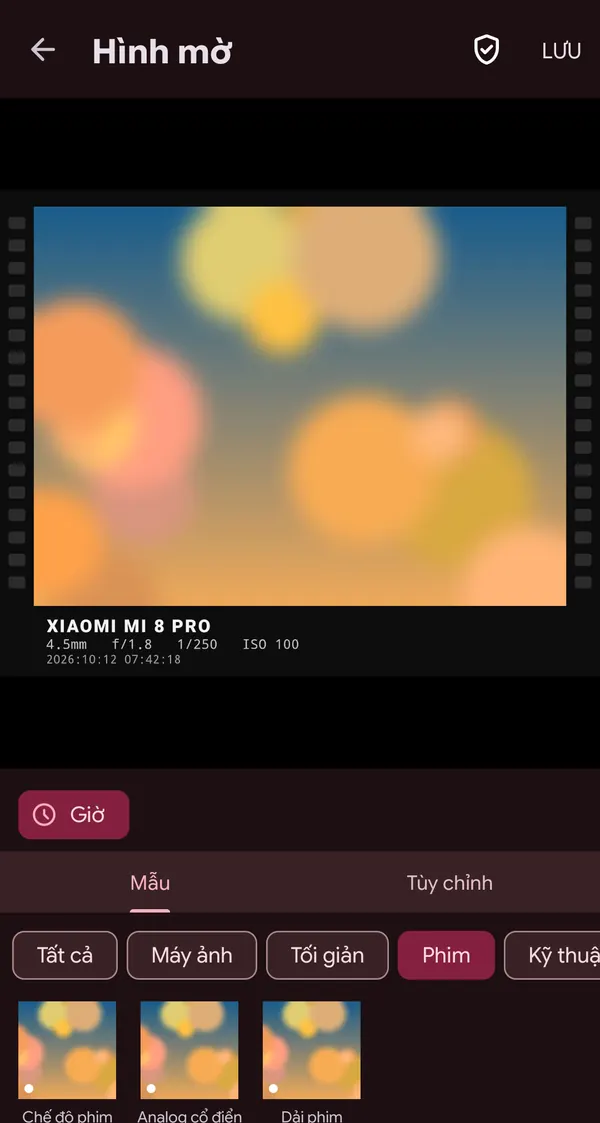
What you need
- ExifTool on Android (Google Play) or the iPhone beta on TestFlight.
- A photo taken with your camera app (screenshots and downloaded memes usually have no camera data).
Step by step
- Open the photo. In ExifTool, tap the picture you want to frame. Check the EXIF tab: Make, Model, F Number, Exposure Time, ISO and Date Time Original should have values.
- Open the action menu. Tap the round button at the bottom right, then Add watermark ("Add a frame with camera info and date taken").
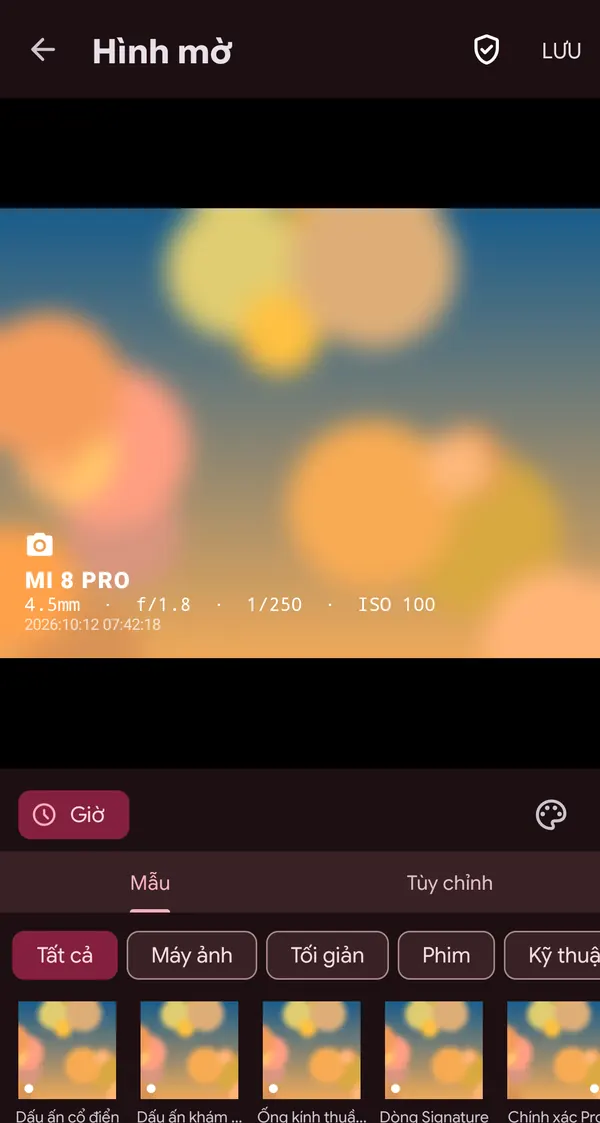
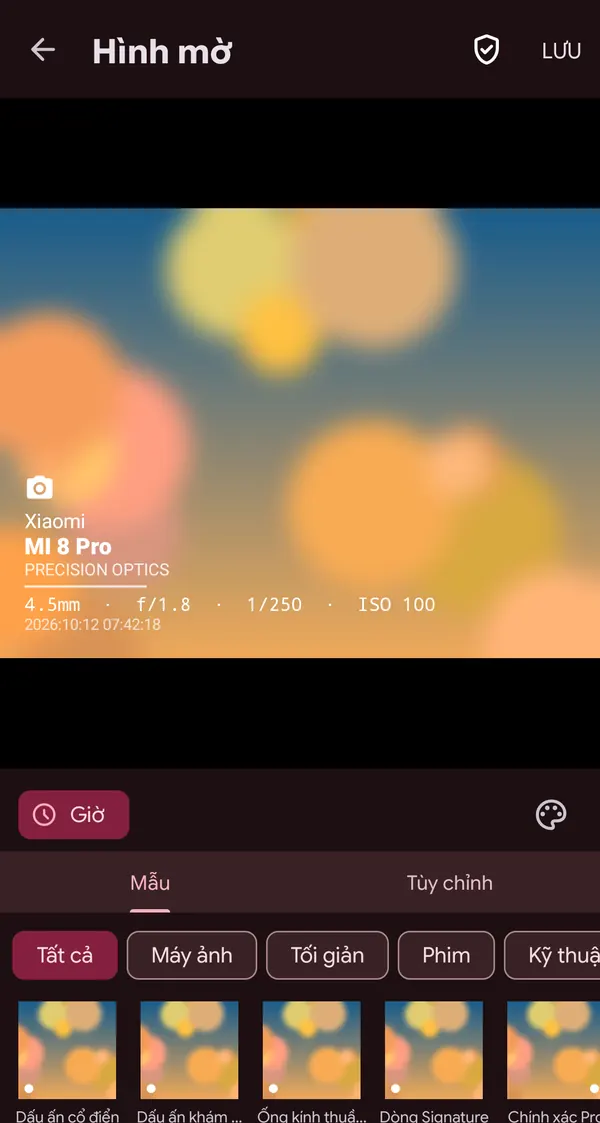
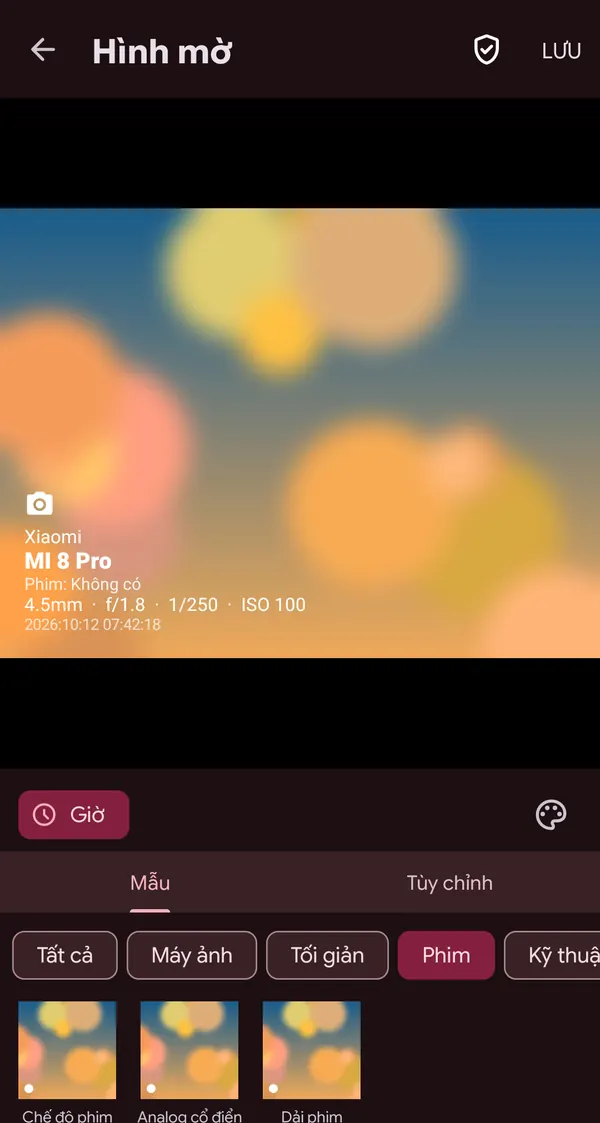
- Pick a style. Browse the categories under the preview: All, Camera, Minimal, Film, Technical. Tap a thumbnail to preview it live.
- Decide on the time. The Time chip above the styles shows or hides the time next to the date.
- Fine-tune (optional). The Custom tab lets you adjust the frame instead of using a preset as-is.
- Save. Tap Save in the top bar. The framed photo is saved as a new image, ready to share.

Four styles worth trying
Tips for frames that look great
- Fix the data first. If your camera wrote an ugly model code, edit Model in the EXIF tab (for example “MI 8 Pro” instead of a long code), then add the frame.
- Match the style to the photo. Minimal frames suit architecture and product shots. Film styles suit street, travel and portraits.
- Mind the date. Wrong date? Correct Date Time Original first (how to change the date taken).
- Share without location. The frame shows the settings, not your GPS. Still, use Remove location & share on the framed copy if the original was geotagged (why it matters).
- Make a series. Use the same style for a whole trip and your feed instantly looks curated.
Ideas to get likes
- “Shot on phone” challenge: frame your best phone shots with full settings. People love seeing that a phone did it.
- Before/after settings: post the same scene at 1/30 s and 1/1000 s with the frames visible and explain the difference.
- Travel postcards: film strip frame plus the date makes every holiday photo look like a printed memory.
- Gear-free tutorials: show your f-number and ISO in the frame so beginners can copy your settings.
Want more? See 7 creative things to do with photo metadata, or the full ExifTool guide.
How to install ExifTool
- Android: Open Google Play, search for “ExifTool” or tap the Google Play badge below, then tap Install. Updates arrive automatically through Google Play.
- iPhone / iPad (beta): The iOS version is in beta on TestFlight. Install Apple’s TestFlight app from the App Store, then open the TestFlight link below on your iPhone and tap Accept → Install. If the beta is full, check back later.
Coming soon: App Store.
💡 Tip: only install ExifTool from the official stores or the links on this page, never from unknown APK/IPA mirrors. See every feature on the ExifTool page.
FAQ
Where do the numbers in the frame come from?
From the photo's own EXIF: camera make and model, focal length, aperture, shutter speed, ISO and the date taken. If a tag is missing, fix it first with the pencil icon in ExifTool, and the frame updates.
Does the frame replace my original photo?
Adding a frame creates a new image because it draws on the picture. Keep the original if you may want to print or edit it without the border later.
Can I use these frames on Instagram?
Yes. The framed image is a normal photo you can post anywhere. Many photographers use this style to show their settings without typing them in the caption.
My photo shows the wrong camera name. Can I change it?
Yes. Edit the Make and Model tags in the EXIF tab before you add the frame. Just do not claim a camera you did not use if you enter contests or sell prints.