
How to Change a Photo's GPS Location on a Map (Android & iPhone)
A photo of the beach that your gallery files under the airport. A batch of museum shots with no location because GPS never locked indoors. A picture your friend sent with location stripped, which you want back on your travel map.
All of these have the same fix: drop a pin on a map and write the coordinates into the photo. ExifTool’s coordinate editor does it in a few taps.
Step by step
- Open the photo in ExifTool (Android: Google Play; iPhone: TestFlight beta).
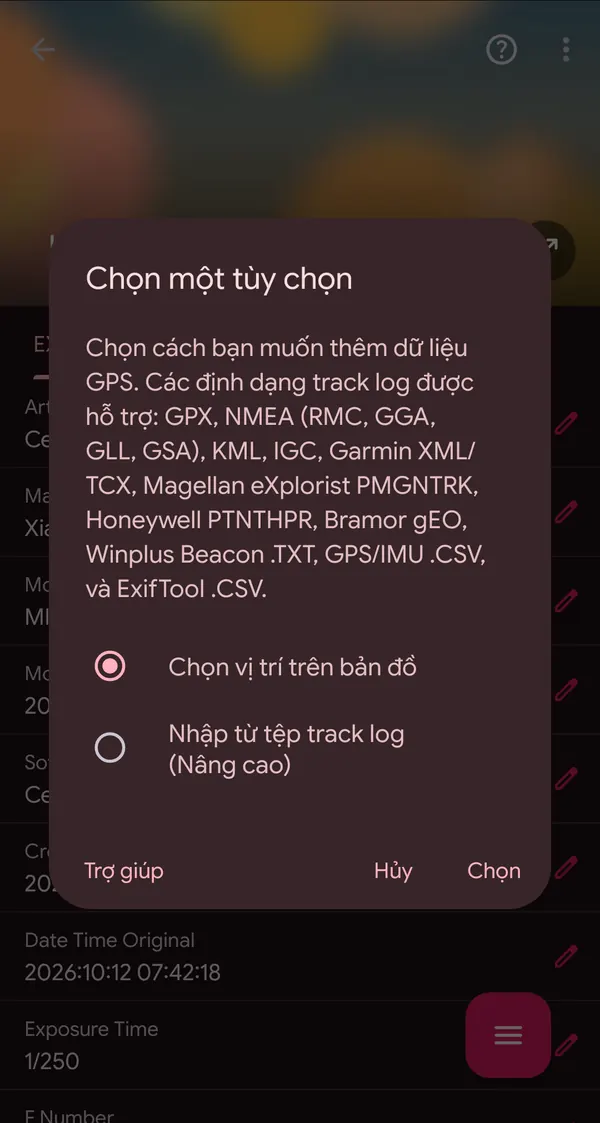
- Tap the round action button and choose Update EXIF location.
- Select "Pick a location on the map" and tap Choose.
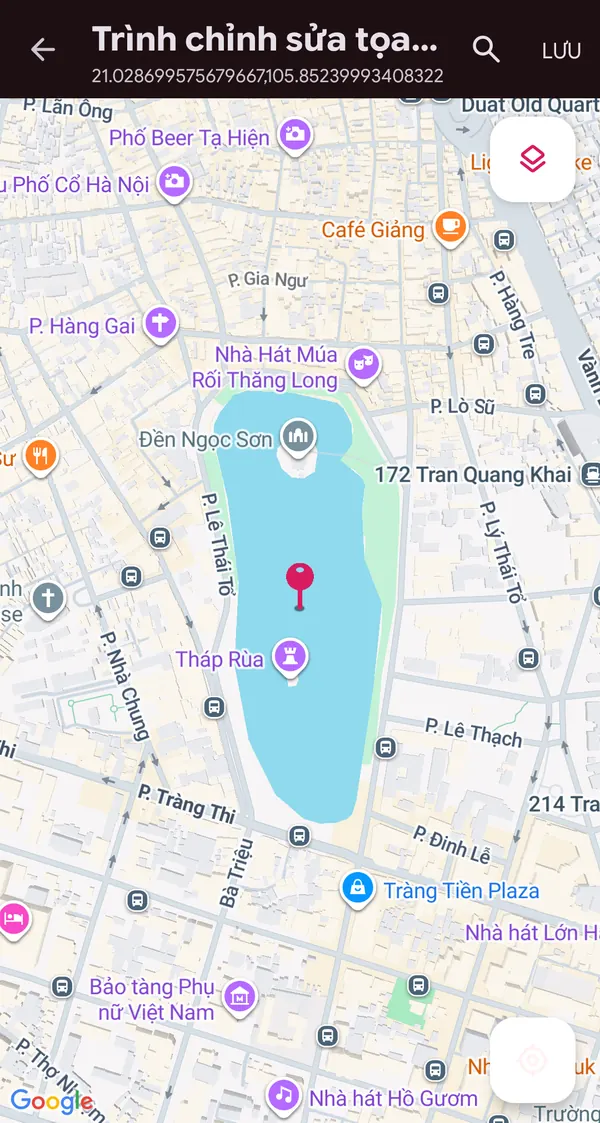
- Move the map until the pin sits where the photo was taken. Use the search icon to jump to a place by name, and the layers button to switch to satellite view for precise spots.
- Check the coordinates shown under the title, then tap Save.
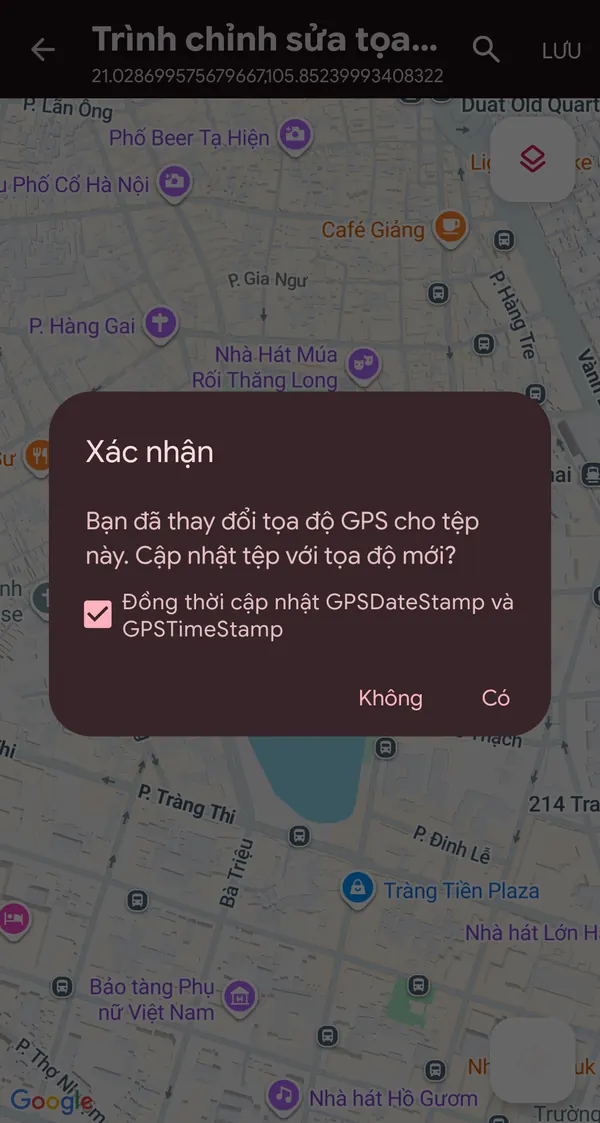
- Confirm. ExifTool asks whether to update the file with the new coordinates, and offers to update GPSDateStamp and GPSTimeStamp too. Tap Yes.
Check that it worked
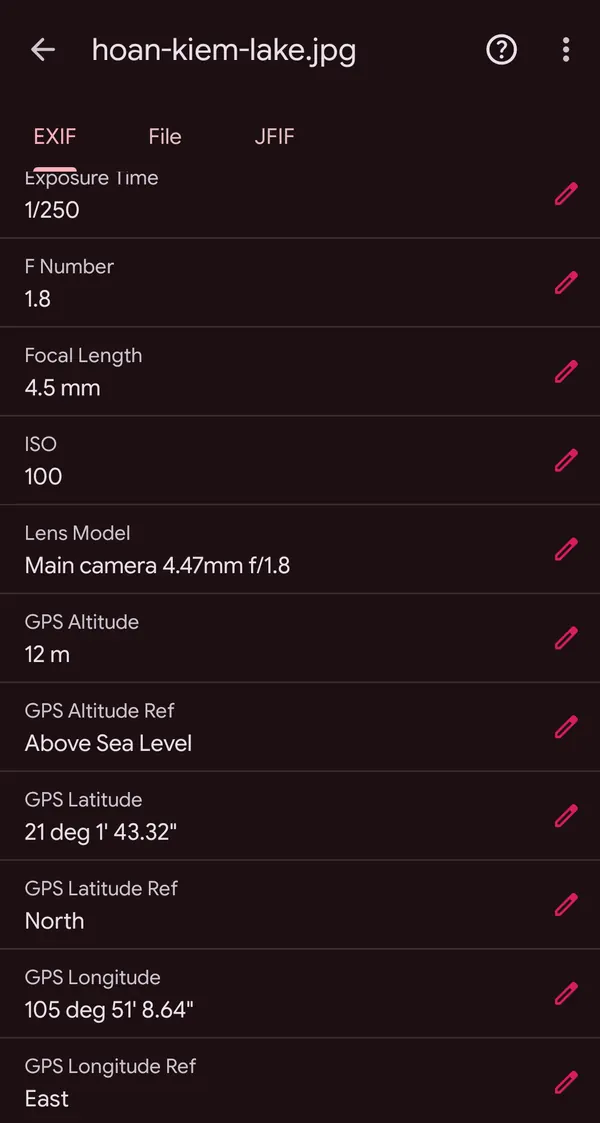
Open the EXIF tab and scroll to the GPS rows: GPS Latitude, GPS Longitude, their Ref (North/South, East/West) and GPS Altitude. The home screen’s Map tab should now show the photo at the new spot.
Pro tips
- Many photos, one place? Fix one, then use Copy metadata to other files and copy just the GPS fields to the rest.
- Whole trip? If you had a watch or tracking app running, geotag from the GPX track instead of placing pins by hand.
- Readable coordinates: EXIF stores degrees, minutes and seconds, while maps use decimals. 21° 1′ 43.32″ = 21 + 1/60 + 43.32/3600 = 21.02870°.
- Altitude matters for hikers: after the location, check GPS Altitude and edit it with the pencil if it is way off.
Removing a location instead
Going the other way, to hide where you live, work or where your kids go to school, is just as easy:
- Update EXIF location → remove clears GPS from the file itself.
- Remove location & share sends a clean copy and keeps your original intact. This is the best option for marketplaces and social media.
- For dozens of photos, see batch remove GPS from photos.
Play fair: changing GPS on your own holiday photos is housekeeping. Changing it on photos that someone relies on as evidence (a delivery proof, an insurance claim, a timesheet) is not. Keep it honest.
More: find where a photo was taken · every ExifTool feature
How to install ExifTool
- Android: Open Google Play, search for “ExifTool” or tap the Google Play badge below, then tap Install. Updates arrive automatically through Google Play.
- iPhone / iPad (beta): The iOS version is in beta on TestFlight. Install Apple’s TestFlight app from the App Store, then open the TestFlight link below on your iPhone and tap Accept → Install. If the beta is full, check back later.
Coming soon: App Store.
💡 Tip: only install ExifTool from the official stores or the links on this page, never from unknown APK/IPA mirrors. See every feature on the ExifTool page.
FAQ
Why would a photo have the wrong location?
Phones sometimes save the last known position when GPS has not locked yet, especially indoors, on planes or right after turning location on. Photos taken with location off have no position at all.
What is the GPSDateStamp option?
When you save new coordinates, ExifTool can also update GPSDateStamp and GPSTimeStamp so the GPS time matches the photo. Leave it ticked unless you have a reason to keep the old GPS time.
Is it OK to change where a photo was taken?
Fixing your own photos is fine. Do not change locations to mislead people, for example on photos used as proof of work, insurance evidence or news. That can be fraud.
How do I remove the location instead?
Use Update EXIF location and remove the GPS, or Remove location & share to send a clean copy and keep your original untouched.